App startup
LocAi restores your saved chats, settings, API keys, downloaded models, and previously active model information from your device.
Customer Documentation
This page explains the real app behavior in plain language for customers: how model selection works, how messages are answered, and how to use each screen effectively.
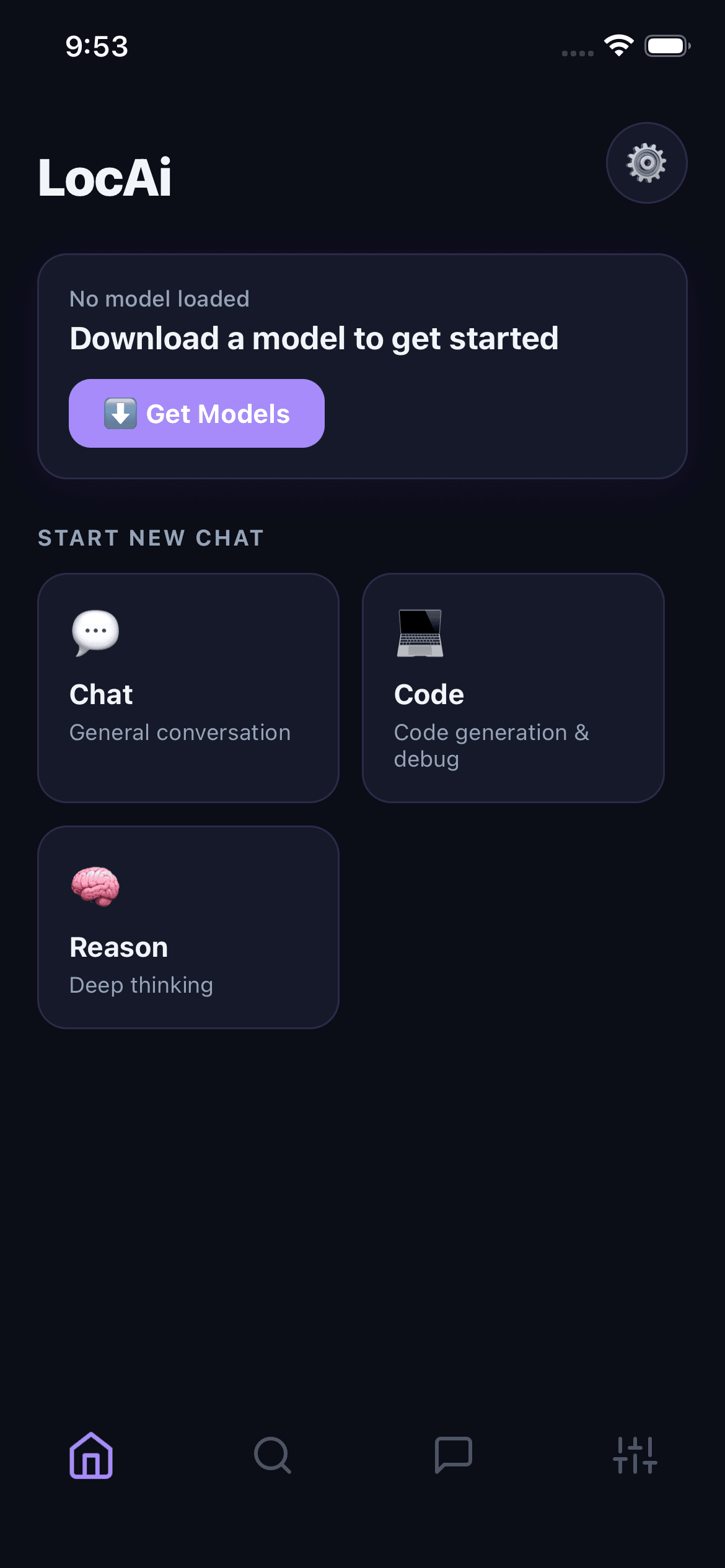
LocAi combines local and cloud AI in one chat experience. The app handles setup, model routing, and saving automatically so daily use stays simple.
LocAi restores your saved chats, settings, API keys, downloaded models, and previously active model information from your device.
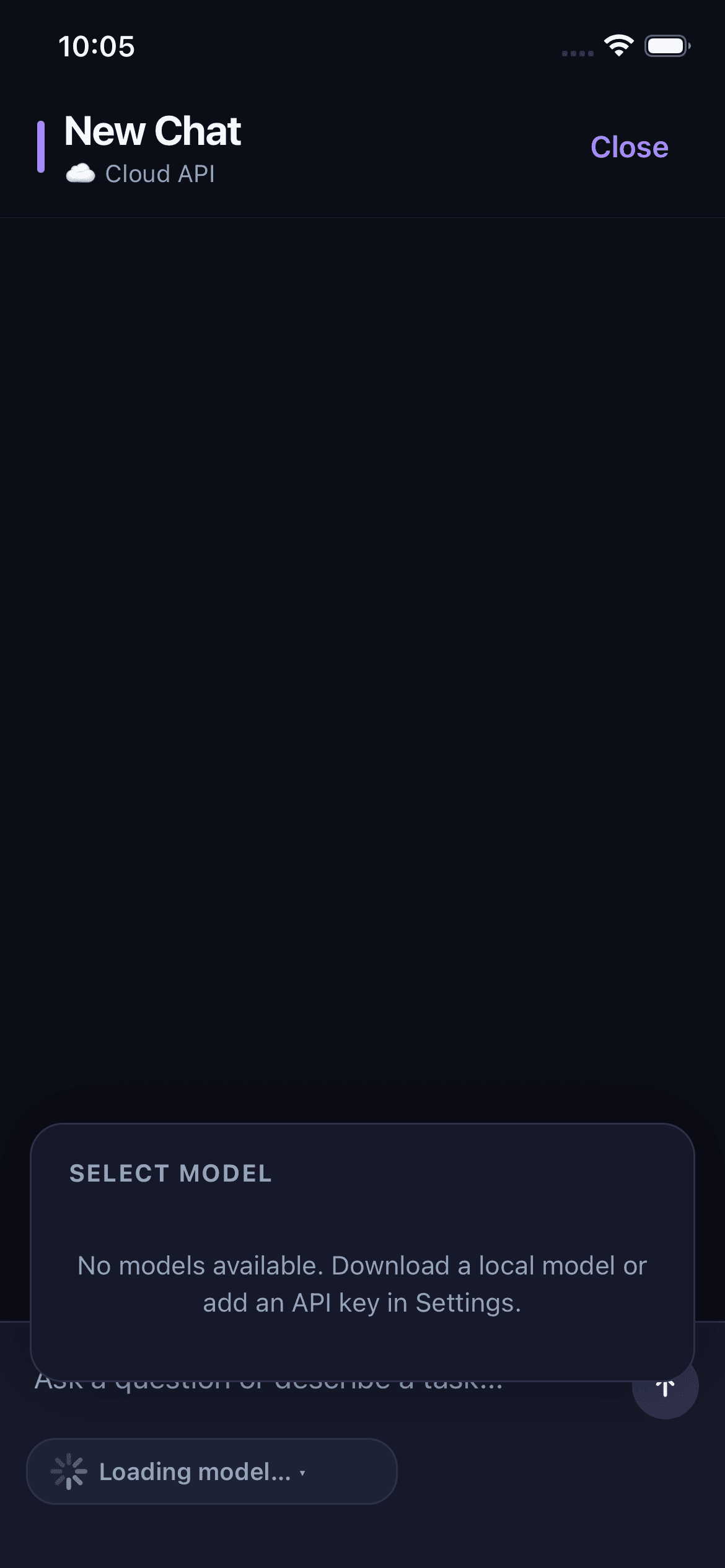
When you open chat, the app tries to pick the best available model automatically so you can start quickly.
If you selected a local model, LocAi runs on-device. If you selected a cloud model, LocAi sends your request to the selected provider.
Conversations are saved automatically, so you can leave and come back without losing progress.
When a chat opens, LocAi follows this priority order to select a usable model automatically:
See your active model status, start a new chat mode, view connected cloud providers, and jump into recent conversations.
Browse model options, see device-fit recommendations, download models, load one into memory, and remove models you no longer need.
Write prompts, switch local or cloud model from the model picker, stream responses, stop generation, and continue saved conversations.

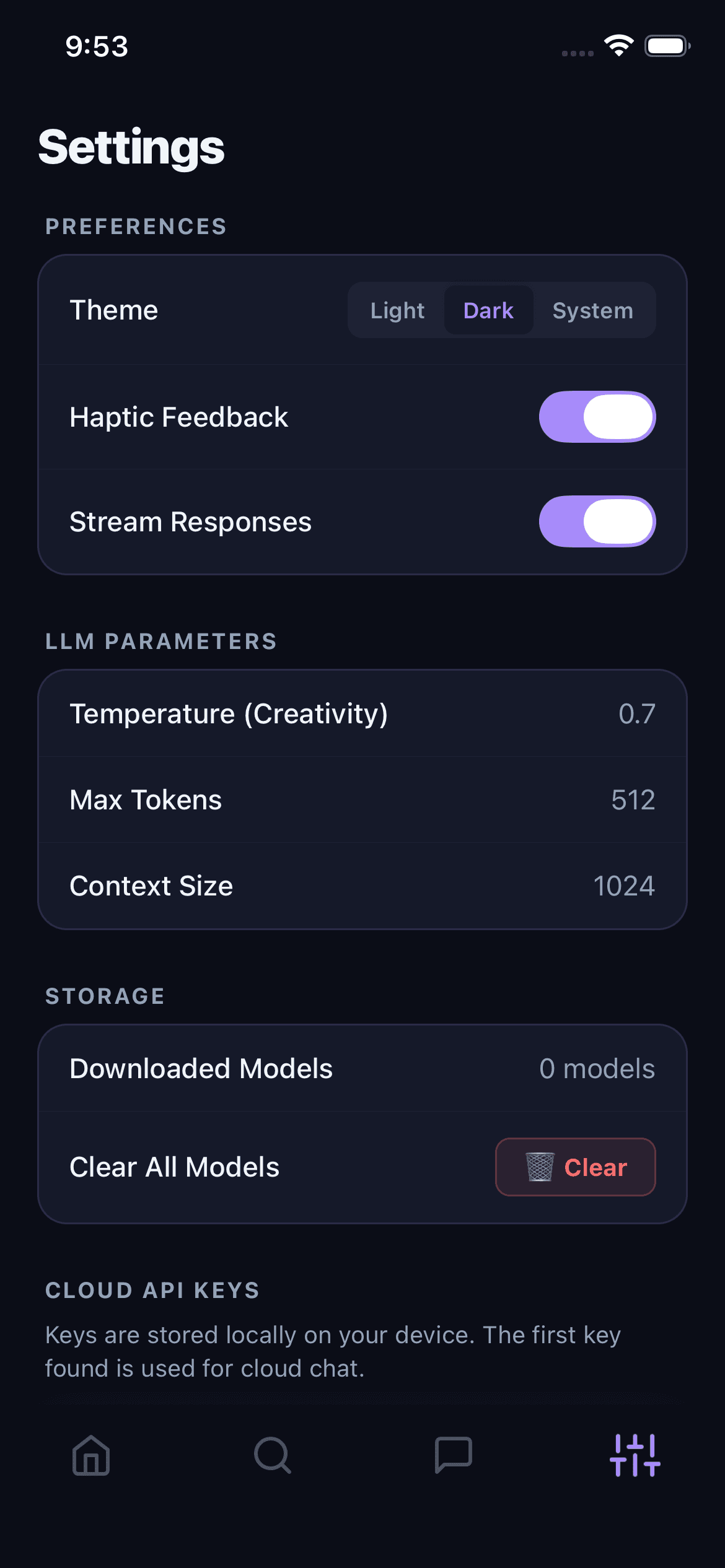
Manage theme and response behavior, add/remove cloud API keys, and clear downloaded models when you want to free storage.
Follow this first-time setup path to start using LocAi smoothly.
Review available models and pick one that matches your device performance label.
Wait for download to finish, then load that model to enable offline local chat.
In Settings, add OpenAI, Anthropic, Google, or Groq key if you want cloud model access.
Use Home or Chat tab to create a new conversation and begin asking questions.
Use the model selector pill to switch model at any time. LocAi remembers your latest choice.
Use the Chat tab to search conversations and remove old ones with swipe-to-delete.
Use these practical habits to get reliable results every day.